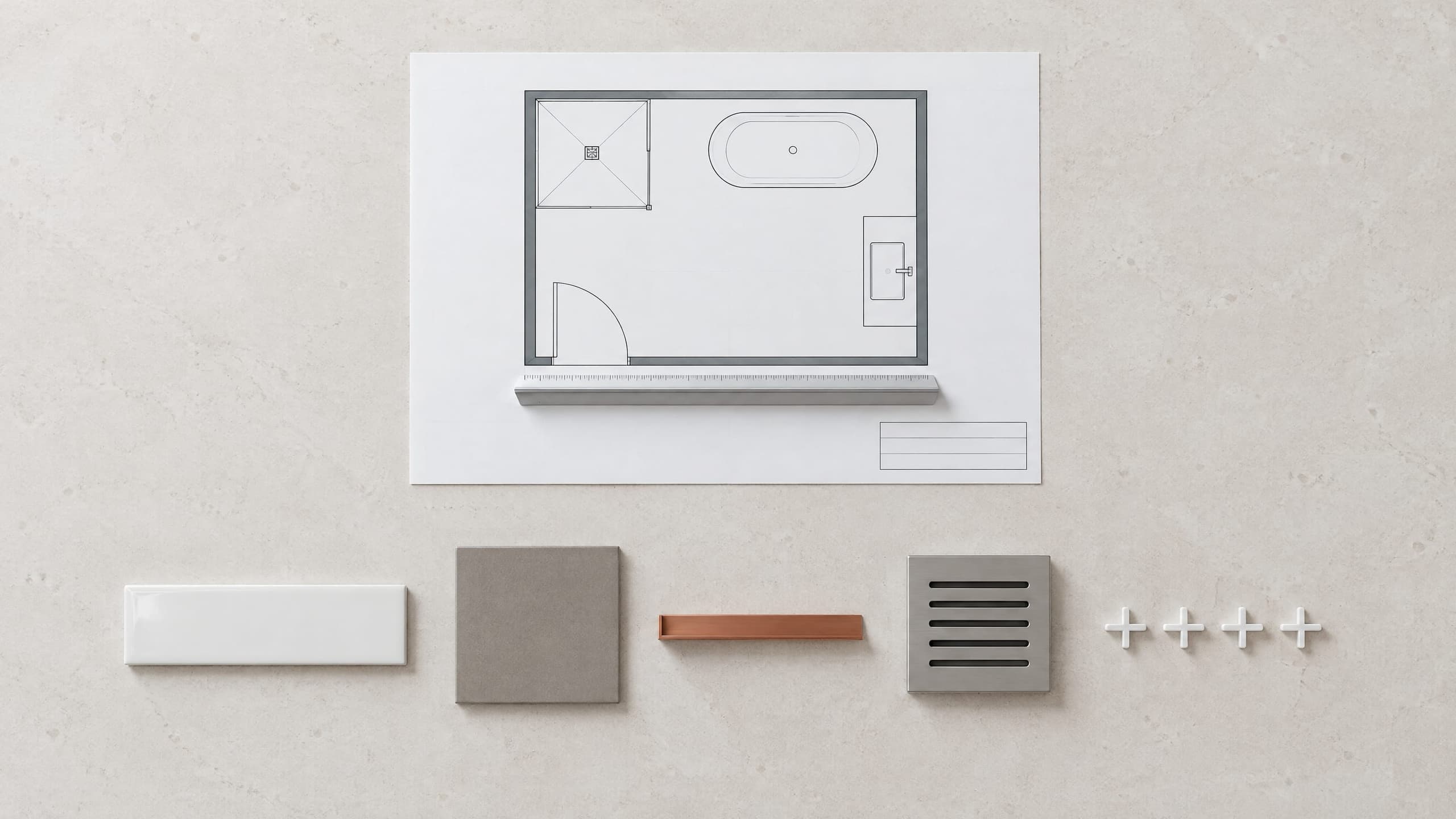
Takeoff software for iPad: what works and what to test.
Yes, you can do a takeoff on an iPad. Run this finger test, about 20 minutes, before you trust a tool with a bid: shapes, snap, scale, plan sets, signal.
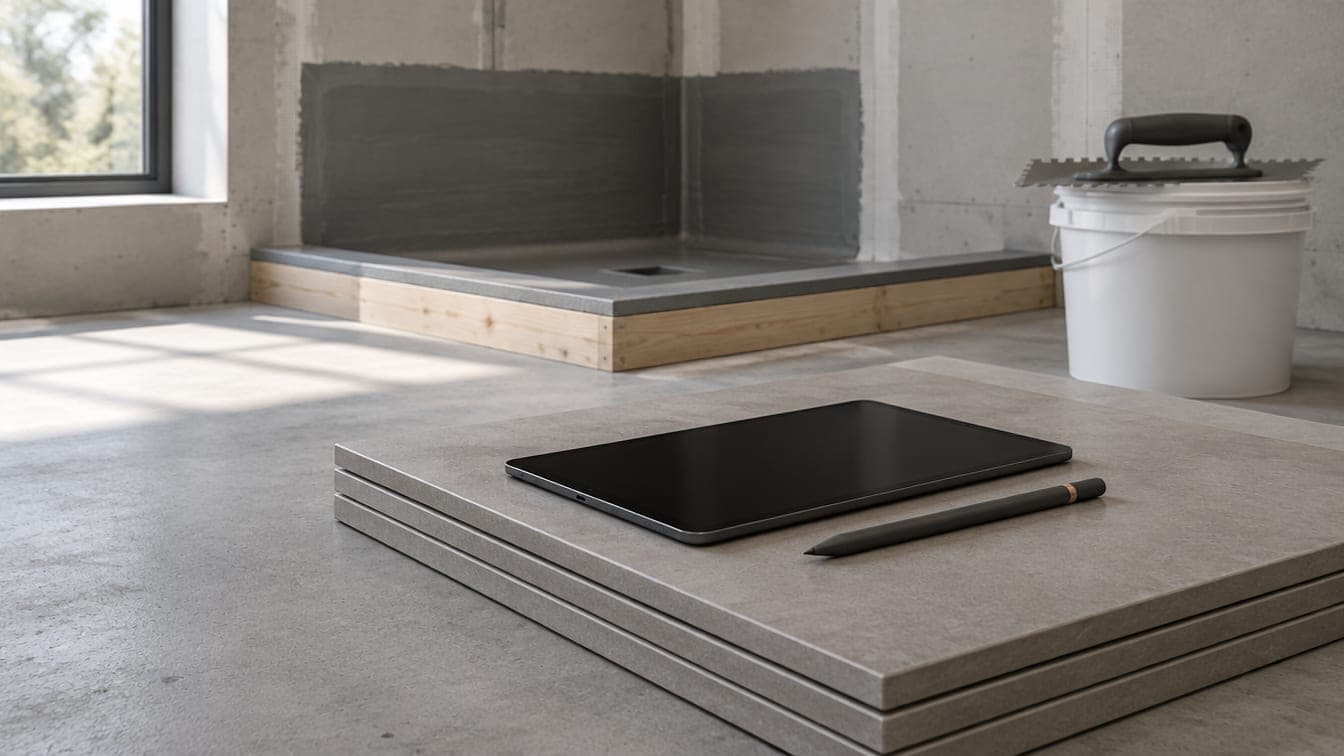
Yes, you can do a real takeoff on an iPad. PlanSwift, On-Screen Takeoff and MeasureSquare Stone & Tile, the long-standing desktop takeoff software, install on Windows, and their system requirements don't mention the iPad. So on an iPad you choose between a browser tool built for touch, such as STACK (in the iPad browser since June 2026) or Cedrus, and a companion app that views, marks up and measures, such as Bluebeam's iOS app. MeasureSquare's own iPad app, MeasureSquare Mobile, measures rooms on site with a laser meter (all checked October 2026).
What decides it is how the tool behaves under your finger, so run this test, about 20 minutes, in any trial or demo. For the vendor decision, see takeoff software compared for tile work and the 2026 buyer's guide.
Before you start, pick a plan you've already measured by hand, so you know the right answers: an L-shaped room, a shower on an enlarged plan or elevation, and a sheet that mixes scales. Test with a finger first, then a Pencil.
In this post13 sections
- 1. Close an L-shaped room without a right-click
- 2. Check that it snaps to the plan's lines and stays sharp at zoom
- 3. Type an exact length instead of dragging
- 4. Set the scale on a sheet that mixes 1/4" plans and 1/2" elevations
- 5. Measure a shower wall, a trim run and a niche by touch
- 6. Load the whole plan set, and a photo
- 7. Work side by side with the finish schedule
- 8. Turn off Wi-Fi and see what happens
- 9. Open the same takeoff at the desk
- The iPad test, on one page
- Browser or App Store?
- And on a Mac?
- Running the test in Cedrus
1. Close an L-shaped room without a right-click
Tap the room's six corners one at a time, then finish the shape. At a desk that's a double-click or a right-click; on an iPad the tool needs another way. STACK's support docs finish a measurement with a long press of about two seconds (checked October 2026); Cedrus uses press and hold, then Finish shape. Also check that you can undo the last corner, and pan or pinch mid-shape without dropping a stray point.
Example: an L-shaped room 12'4" × 10'0" with a 4'0" × 3'6" notch out of one corner. The answer is 123.3 SF less 14.0 SF, or 109.3 SF. The perimeter is 44'8", the same as the full 12'4" × 10'0" rectangle. If the tool says otherwise, find the corner that moved.
2. Check that it snaps to the plan's lines and stays sharp at zoom
Screen size gets the blame for touch error, but the scale does the damage. At 1/4" = 1'-0", 1/16" on the printed sheet is 3" of wall. Miss both ends of a 12'4" wall by that much and it can read anywhere from 11'10" to 12'10". At a whole-sheet view a fingertip won't place a point that finely; you'd have to zoom in for every corner. A tool that snaps to the drawn line does it for you. Snap to the room side of the wall, the face that gets tile.
Test it on a vector PDF and on a scan, where the tool has to find the lines in the image. Then zoom in until the lines should break into pixels: a good tool re-renders the sheet sharp.
3. Type an exact length instead of dragging
The plan says 12'4", so type it rather than drag to it. First check what the dimension is measured to: stud face or centerline isn't the face you tile. The tool should take architect notation as written: 12'4", 8', 96", 2 3/8". Typing mid-line can need a hardware keyboard (in Cedrus it does), so test with the keyboard you'll carry. Then type 8' into a wall-height field with the on-screen keyboard. If the page zooms in on the field, every entry costs a pinch back out.
4. Set the scale on a sheet that mixes 1/4" plans and 1/2" elevations
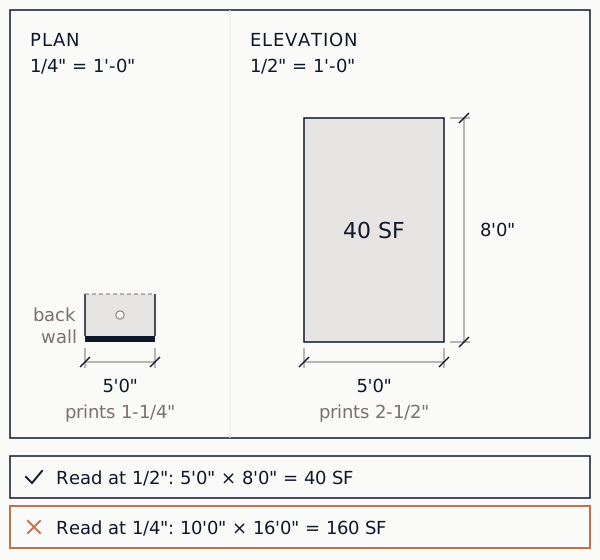
Plan sets often put two scales on one sheet: the floor plan at 1/4" = 1'-0", an enlarged bath plan or the interior elevations at 1/2" = 1'-0". The same 5'0" wall prints 1-1/4" long on the plan and 2-1/2" long on the elevation. Read the elevation at the plan's scale and every length doubles. A 5'0" × 8'0" wall, 40 SF, comes out 10'0" × 16'0", or 160 SF.
 (open full size)
Don't trust the scale printed on the sheet. Half-size sets and scans printed to fit change it: a 1/4" plan printed at half size is really at 1/8" = 1'-0". Set the scale from the longest dimension string on the sheet, then check it against a second one.
Then test three things: a scale per sheet, a scale for one region of a sheet, and whether changing a scale re-measures (and so reprices) everything already drawn. If it doesn't, a scale fixed after the takeoff means drawing it again.
5. Measure a shower wall, a trim run and a niche by touch
Tile walls are priced in elevation, wall length times tile height, so a shower needs walls with a height, trim by the foot and counts by the tap.
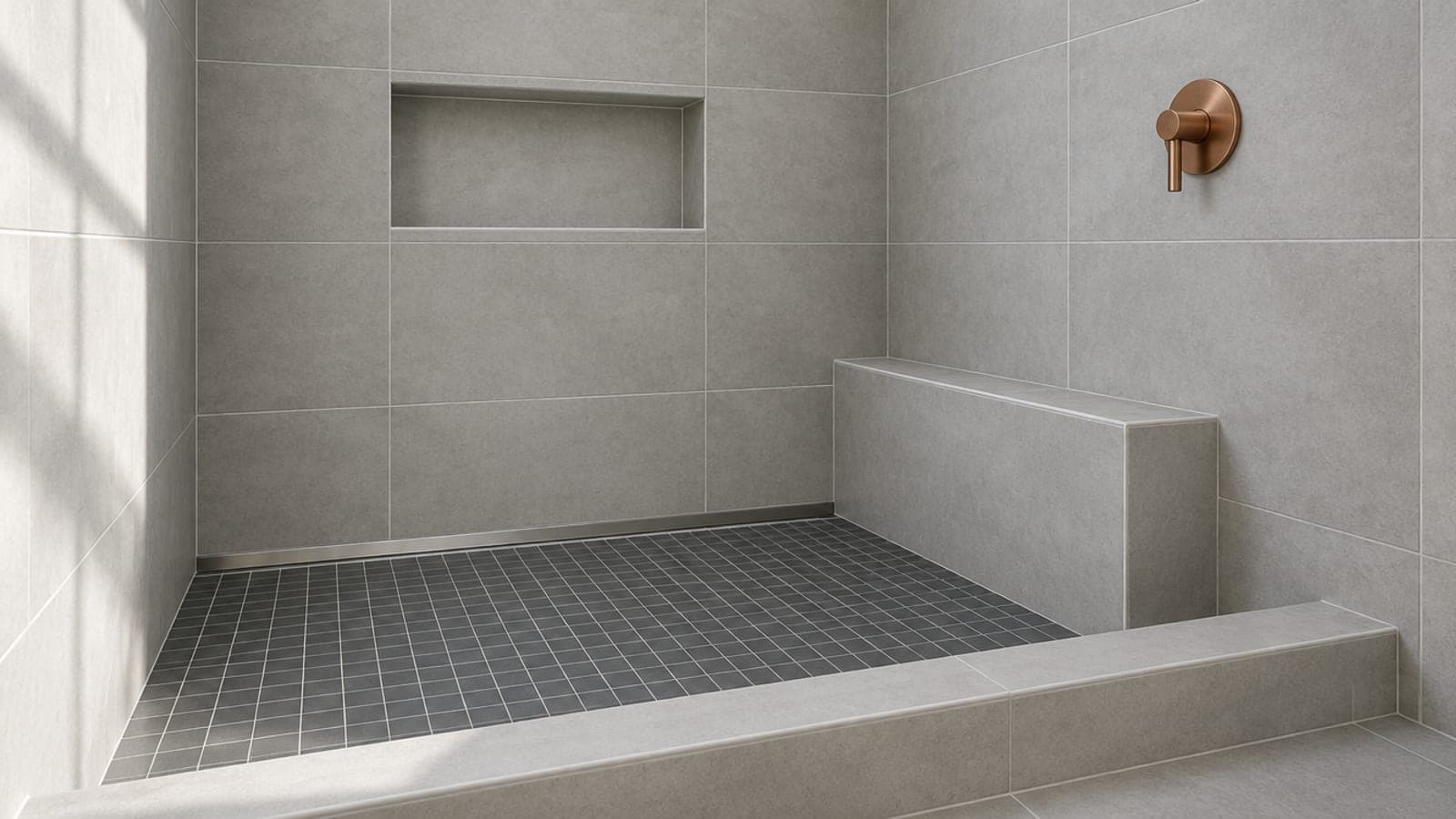
Example: a 5'0" × 3'0" shower inside a 6" curb, tiled to 7'0" below an 8'0" ceiling. The back wall runs 5'0" and each side wall 3'6", out over the curb, so the walls are 12'0" × 7'0" = 84 SF. The 1'0" × 2'0" niche isn't deducted: its back is tiled and its returns are in the niche price. Add 1 niche and 1 drain by count, 5 LF of curb, a 15 SF pan, and 32 LF of trim: the 12 LF top edge, 7 LF up each outside edge and 6 LF around the niche.
To pass, a wall takes a typed height, trim sits on one edge of a shape, a count lands with one tap, and a deduction, such as a window, comes off the wall area. The same shower is priced scope by scope in how to bid a tile shower.
6. Load the whole plan set, and a photo
Plans arrive as emailed PDFs, Dropbox or Drive links, GC portal downloads and phone photos. On an iPad, save the set to the Files app, then pick it from the tool's upload button. Load the biggest set you bid and note the tool's file-size and page limits.
If the tool takes PDFs only (Cedrus does), a photo or sketch has to become a PDF first. One route that works: open it, then Share → Print → pinch the preview → Share as PDF. Menu names shift between iPadOS versions. A photo of a plan isn't to scale: shoot it square, set the scale from a written dimension and check a second. Draw a field sketch from its written numbers, not by scaling it.
7. Work side by side with the finish schedule
The finish schedule or spec book belongs next to the plan. On iPadOS 26 that's tiled windows: turn on Windowed Apps in Settings → Multitasking & Gestures, open the takeoff full screen and drag the other app from the Dock to the left or right edge. Before iPadOS 26 it was called Split View. The canvas has to keep drawing at half width, and a pinch on the toolbar shouldn't zoom the whole page.
8. Turn off Wi-Fi and see what happens
Most browser tools need a signal. STACK's own launch note says a stable Wi-Fi or LTE connection keeps plans loading quickly in the field (checked October 2026), and job sites drop it. Mid-takeoff, turn Wi-Fi off, and cellular if the iPad has it. Does the tool tell you it's offline? Does your work save when the signal comes back? Can you open a project or load a set with no signal at all?
9. Open the same takeoff at the desk
Finish on the desktop what you started on the iPad: same project, no export, no import, nothing redrawn. The iPad earns its place on the job walk, in the showroom or a client meeting, and beside the finish schedule. A 60-sheet set still goes faster at a desk with a keyboard and a big screen.
The iPad test, on one page
| Test | What a pass looks like |
|---|---|
| L-shaped room, 6 corners | Closes without a right-click; 109.3 SF |
| Snap and zoom | Lands on the drawn line; sheet stays sharp |
| Typed length | Takes 12'4" as written |
| Mixed-scale sheet | Scale set per sheet or region |
| Shower wall, trim, niche | 84 SF, 32 LF, 1 niche |
| Plan set and a photo | Loads from Files; a photo goes in |
| Side by side | Canvas still draws at half width |
| Wi-Fi off | Says it's offline; saves when back |
| Same takeoff at the desk | Opens as you left it |
Browser or App Store?
A browser tool is one account and one project on every device, with nothing to install, but most need a connection. An App Store app is a separate install with its own updates, and whether it works offline is the vendor's call. Run test 8 on either.
And on a Mac?
Browser tools run in Safari or Chrome on a Mac. PlanSwift's and On-Screen Takeoff's system requirements point Mac users to Windows under Boot Camp or Parallels, and On-Screen Takeoff's page notes that Boot Camp isn't available on Macs with M-series chips (checked October 2026). Cedrus runs in Safari or Chrome on a Mac, the same project as on the iPad.
Running the test in Cedrus
Cedrus is built iPad-first. You draw with a finger or a Pencil and long-press for the menu. It snaps to the plan's lines by default, takes 12'4" from a keyboard, gives walls a height, trims an edge, counts niches, deducts openings, sets scale per sheet or region, takes one PDF of up to 100 megabytes or 500 pages per upload and opens the same project at the desk. It fails test 8 in part: on the iPad it needs a connection. If the iPad loses it mid-takeoff, the save marker says Offline and the work saves when you're back on, so don't close the tab until it does. You can't open a project with no signal, there's no App Store app, and phones check and measure but don't draw. Solo is $0 for one seat and three active projects; Pro is $49 a month for five seats.